Article
Send to Smartsheet from Claude Sheets, now available in beta!
November 10, 2026
Start a plan in Claude, then hand it to your team in Smartsheet. Claude Sheets, the new spreadsheet artifact in Claude from Anthropic (now in beta), includes the option to Send to Smartsheet: choose a workspace, and Claude creates a new Smartsheet sheet with your rows, dates, numbers and dropdowns carried over. From there, you can assign owners, add automations and dashboards, and keep building with Claude in the same conversation through the Smartsheet MCP connector for Claude.
What you can do:
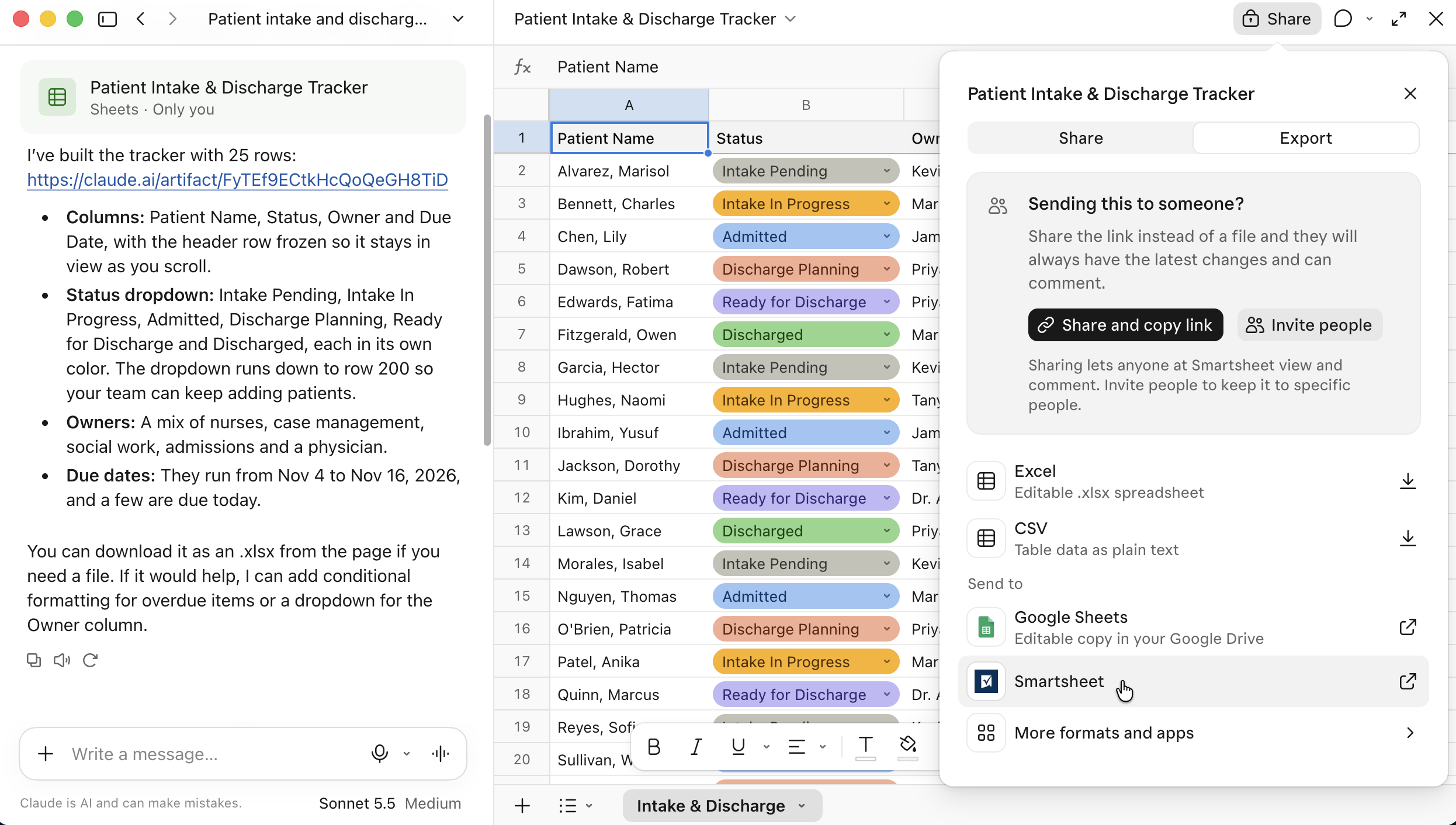
- Send a sheet from Claude Sheets to Smartsheet: After creating a sheet in Claude, click ‘Share,’ select the ‘Export’ option, and choose ‘Smartsheet’ from the ‘Send to’ menu. If you haven’t connected Claude to Smartsheet yet, click the ‘Connect’ button to set up the integration first. Pick a destination workspace, and Claude creates a new sheet using your Smartsheet login and the Smartsheet connector for Claude. When it's done, it replies with a link to the new sheet, the row count, and anything that changed form or was left out.
- Start with real, workable data: Dates, numbers, and dropdowns arrive as their Smartsheet equivalents, so the sheet is ready to sort, filter, and build on. Dropdowns become single-select columns with the same options.
- Keep building in the same conversation: After the send, ask Claude to add formulas, formatting, or hierarchy, or to build automations, dashboards, and reports around the new sheet.
- Bring in your whole team: Assign owners and due dates, share with collaborators, and send update and approval requests.
Why it matters:
More and more plans start in a conversation with AI, but a plan only moves forward when the people who own the work can see it. Send to Smartsheet moves new Claude Sheets straight into the system your team already runs on, your new sheet can connect to the projects and goals it supports.
Good to know:
- If you don’t see Smartsheet in the ‘Send to’ list within the Export menu, click ‘More formats and apps.’ You may need to click ‘Connect’ to enable the Smartsheet connector for Claude if you haven’t used it before.
- Each send copies one tab into a new sheet. You choose a destination workspace for each send. Changes made in Claude Sheets after the send don't sync to Smartsheet, and changes in Smartsheet don't sync back. Using the Smartsheet connector for Claude, you can ask Claude to make changes to your new sheet in Smartsheet directly.
- Formulas arrive as their current values, and cell formatting isn't carried over. Titles above the header row, blank rows, and a final totals row aren't sent. After the send, you can ask Claude to rebuild formulas and formatting in Smartsheet.
- People arrive as plain-text names rather than Smartsheet contacts.
- Depending on your connector settings, Claude may ask you to approve each step. To skip these prompts, go to Customize > Connectors > Smartsheet > Configure in Claude and set the add rows tool to Always allow.
- The new sheet follows your existing Smartsheet permissions. Claude can access only the sheets and workspaces you already have access to.
Get started: Add the Smartsheet connector in Claude, then create a sheet with Claude Sheets and choose Send to Smartsheet.
Learn more:
Environment Availability: Commercial US, EU, and AU
Plan Availability: Smartsheet Business, Enterprise, and Advanced Work Management plans
Subscription Model Availability: Legacy Collaborator and User Model